






CYPCUT Laser Cutting Software Operation Manual
By following this guide, users can achieve superior laser cutting outcomes with CYPCUT. Experiment in a controlled environment and refer to official Friendess resources for updates.
Jane Smith, Metalworking specialist with 12 years of experience in sheet metal fabrication and press brake applications, certified by ASME.
All Products
- V-Grooving Machine Punchine Machine.
- Related News How to Properly Install a Press Brake Machine.
- Press Brake Safety Precautions: Complete Guide for Safe Operation and Maintenance blog.
- CypCut-user-manual-V6.5 cypcut laser cutting software.
- press brake machine press brake safety.
- CYPCUT Laser Cutting Software Go to ‘File’ > ‘User Parameters’ > ‘Drawing’ tab.
- Uncheck “Keypoint automatic adsorption.” Adjust snap precision in the same dialog for finer control.
This feature is particularly useful for aligning elements in intricate patterns, but disabling it allows for freehand adjustments when needed.
3. Graphic Drawing Tools
CYPCUT offers a robust suite of drawing tools in the left toolbar, similar to CAD software, for creating standard shapes. From top to bottom: isolated point, line, polyline, circle, arc, rectangle, polygon, text, and standard parts. The ‘Draw’ menu provides additional options.
Standard Graphic Drawing
Basic shapes like points, lines, polylines, circles, and rectangles are straightforward—click to start and define endpoints or radii.
Advanced circle options: Under ‘Draw’ > ‘Circle’ dropdown, “Replace circle positioning hole with isolated point” converts small circles to points for efficiency; “Replace with circle” refines near-circular shapes for fly cutting.
- Polygon variations: Click the triangle below the polygon button for rounded rectangle (draw rectangle first, then set radius via cursor or input), regular polygon (specify sides 3-100, rotatable), or star (sides define points, e.g., 6 for hexagram).“
- Additional shapes: In “Draw” > ‘Rectangle’ dropdown, “Obround” adds semicircles to a rectangle’s ends, creating a racetrack shape.
- These tools enable quick prototyping of parts for laser cutting applications.“
- Text Input.
Click the text button on the left toolbar, then click the insertion point. New text is auto-selected for editing. A ‘Text’ tab appears in the toolbar for modifying content, style, size, etc. Convert text to curves for cutting paths, but note that post-conversion edits are unavailable—design fully before converting.
4. Standard Parts Library
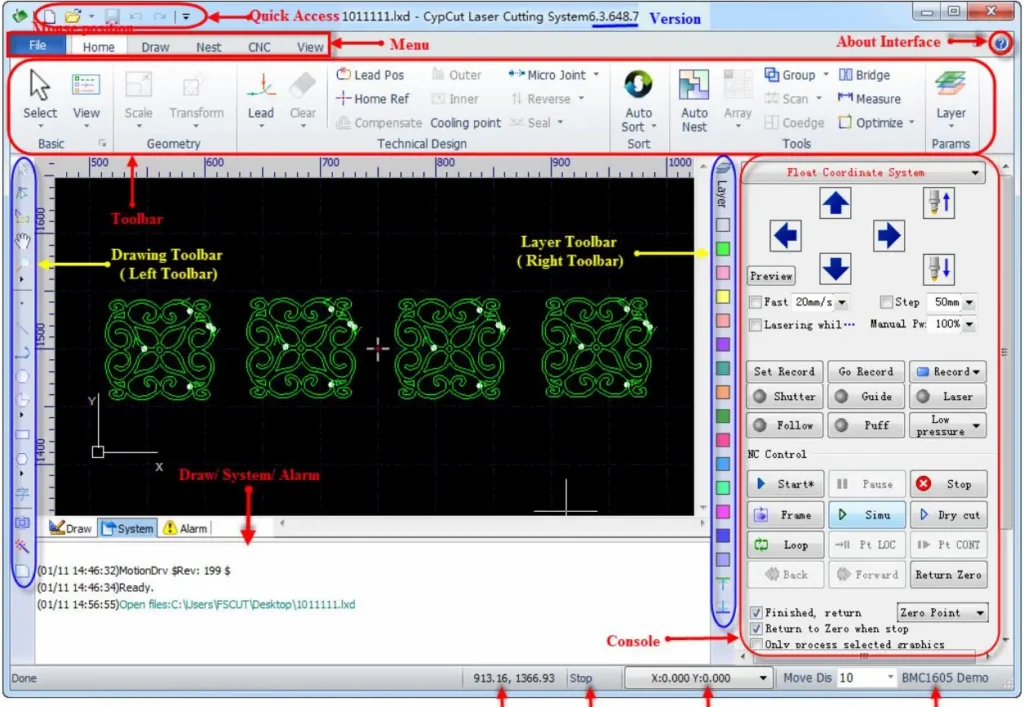
For common components, click the standard parts button on the left toolbar. Select a part type (e.g., gears, flanges) and configure parameters in the subsequent dialog. This saves time on repetitive designs, ensuring consistency in laser-cut parts.
- 5. Measurement Tools.
- To measure distances:“
- Click ‘Home’ > ‘Tools’ > ‘Measure’.
Select the first point; a guide line appears as you drag.
Select the second point; the bottom info bar displays positions and distance.
This is invaluable for verifying dimensions before committing to cuts.
6. Graphic Optimization Techniques
- Imported graphics are auto-optimized, but manual tweaks are available under ‘Home’ > ‘Optimize’ dropdown.
- Curve Smoothing:.
- Select a polyline, click “Smooth,” enter fitting precision (lower for accuracy). Compares before/after for visual confirmation.
- Curve Splitting:.
Click “Split,” then click break points on closed curves to divide them for separate editing. Continue until ESC.
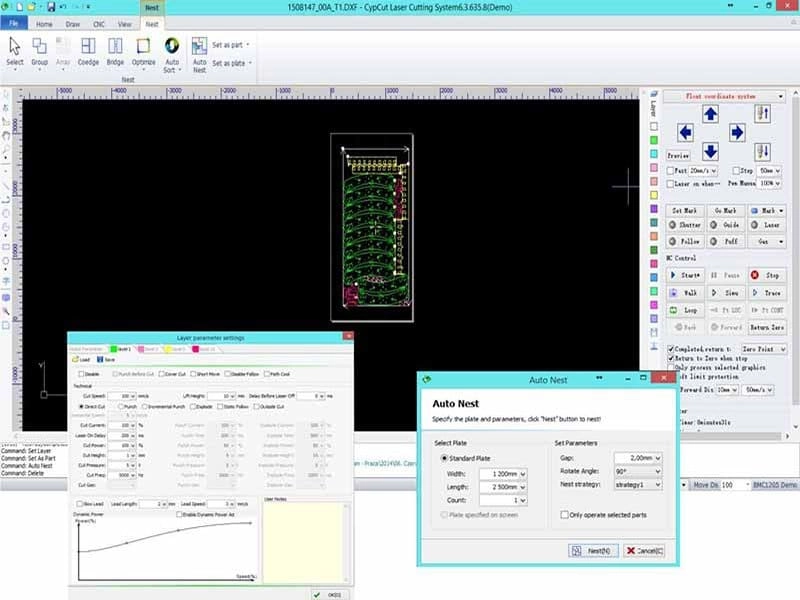
Remove Trivial Graphics:
Set a size threshold to delete tiny, invisible elements that could disrupt scaling or processing.
Remove Duplicates:
Scans and eliminates overlapping lines.
Combine Near Lines:
Merges visually connected but separate segments; input merge precision. Use “Split” first for extraneous returns.
- Chop (for Inner Contours):.
- Adds white chop lines to holes, preventing scrap lift during cutting.
- Plate Separation:.
Divides large graphics into machine-fit sections, saved separately with red borders.
These optimizations improve cut quality and reduce material waste.
7. View and Editing Modes.
- The left toolbar’s top buttons control views: Selection Mode:.
- Default for picking graphics. Node Editing:.
- Select, then drag yellow (start) or blue nodes to tweak shapes. Exit by reselecting ‘Selection’. Manual Sorting:.
- Adjust cutting sequence. Pan and Zoom:.
- Drag views or use mouse wheel/F3 (zoom all)/F4 (center machine frame). Additional view settings: Show path arrows, micro-joints; customize rulers and snap in dialogs.
- Precautions for Safe and Effective CYPCUT CYPCUT Laser Cutting Software Safety First:.
- Always prioritize safety when operating laser cutting machines. Avoid direct exposure to laser radiation and high temperatures. Ensure proper grounding to prevent static damage, and wear protective gear like goggles and gloves. Maintenance and Care:.
Regularly clean dust and debris from the machine to maintain performance. Check components like the laser head and follow system for wear.
Training and Best Practices:
New users should undergo comprehensive training. Familiarize with CYPCUT’s simulation mode to test paths without risking materials. Adjust parameters based on material type (e.g., steel vs. aluminum) for optimal results.
- By following this guide, users can achieve superior laser cutting outcomes with CYPCUT. Experiment in a controlled environment and refer to official Friendess resources for updates. CypCut-user-manual-V6.5.
- Read more about Press Brake Maintenance and Repair Read more about Practical Methods for Press Brake Accuracy with Long Term Precision.
- Read more about Practical Guidance For Press Brake Operation Read more about How to Properly Install a Press Brake Machine.
- Read more about Press Brake Safety Precautions: Complete Guide for Safe Operation and Maintenance cypcut laser cutting software.
press brake safety.
Precauciones para el uso seguro y eficaz del software de corte láser CYPCUT CYPCUT
- La seguridad primero: Priorice siempre la seguridad al operar máquinas de corte láser. Evite la exposición directa a la radiación láser y a las altas temperaturas. Asegure una conexión a tierra adecuada para prevenir daños por estática y use equipo de protección como gafas y guantes.
- Mantenimiento y cuidado: Limpie regularmente el polvo y los residuos de la máquina para mantener el rendimiento. Revise componentes como el cabezal láser y el sistema de seguimiento para detectar desgaste.
- Capacitación y mejores prácticas: Los nuevos usuarios deben recibir una capacitación exhaustiva. Familiarícese con el modo de simulación de CYPCUT para probar trayectorias sin arriesgar materiales. Ajuste los parámetros según el tipo de material (por ejemplo, acero frente a aluminio) para obtener resultados óptimos.
Siguiendo esta guía, los usuarios pueden lograr resultados superiores de corte láser con CYPCUT. Experimente en un entorno controlado y consulte los recursos oficiales de Friendess para obtener actualizaciones.

V-Grooving Machine
- Press Brake
- Laser Cutting Machine
- Shearing Machine
- Press Brake Safety Precautions: Complete Guide for Safe Operation and Maintenance
- Hydraulic Press Machine
- Read more about Practical Methods for Press Brake Accuracy with Long Term Precision
- Rolling Machine
- Ironworker
- Press Brake Tooling
- Machinery Accessories